How to Use the New e-Way Bill and e-Invoice Options in myBillBook
Written By Team Flobiz
Last updated 3 months ago
Platforms: Web, Android and iOS
Features: e-Way Bill, e-Invoice, Sales Return, Credit Note and Delivery Challan
myBillBook now supports additional e-Way Bill and e-Invoice workflows to help businesses record the movement and return of goods more easily.
With these updates, you can:
Generate an e-Invoice for a Sales Return
Generate an e-Way Bill for a Delivery Challan
Generate an e-Way Bill for a Credit Note or Sales Return
How to Add Shipping GSTIN While Generating an e-Way Bill
Platforms: Web, Android and iOS
A new Shipping GSTIN field has been added for applicable Bill-To/Ship-To and combination transactions.
This field allows you to enter the GSTIN of the actual party or location receiving the goods.
The new fields are available in the following workflows:
Generate e-Way Bill
Generate e-Invoice & e-Way Bill
How to enter Shipping GSTIN
Open the Sales Invoice for which you want to generate an e-Way Bill.
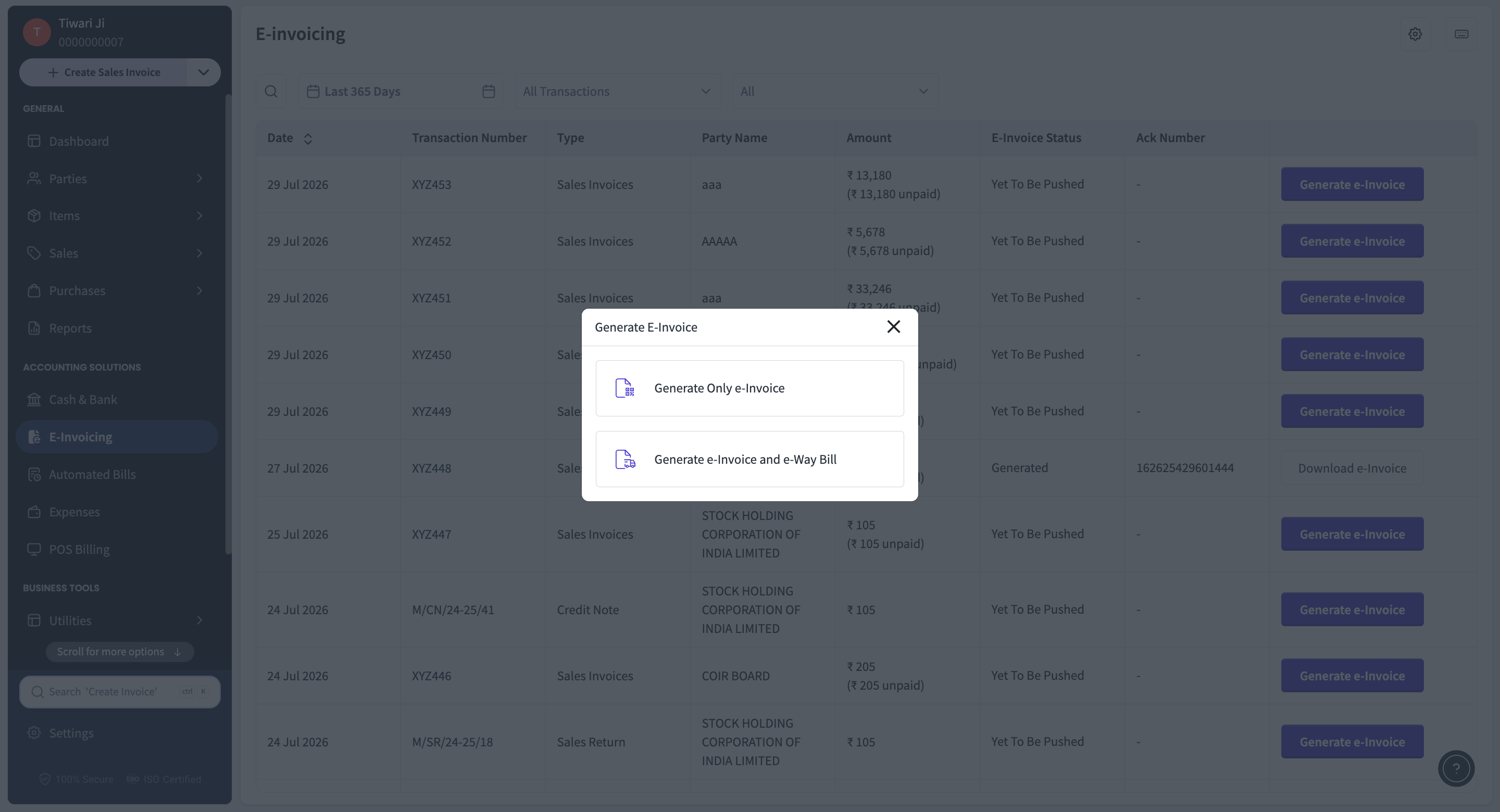
Select Generate e-Way Bill or Generate e-Invoice & e-Way Bill.
Select the applicable Bill-To/Ship-To or combination transaction type.
Complete the Bill To and Ship To details.
Enter the GSTIN of the party receiving the goods in the Shipping GSTIN field.
Enter the Shipping Name, when required.
Complete the remaining shipping, transporter and vehicle details.
Review all the information.
Generate the e-Way Bill.

Was this helpful?
Still need help? Share an idea