How to Cancel an Invoice in myBillBook
Written By Team Flobiz
Last updated 7 months ago
Overview
Previously, the only way to remove a wrong or unwanted invoice in myBillBook was to delete it. But deleting removes the invoice entirely — breaking invoice number sequences, creating gaps that auditors question, and violating compliance requirements.
myBillBook now lets you cancel a sales invoice. The invoice stays on record with a "Cancelled" tag, keeping your invoice number sequence intact and creating a proper audit trail — exactly what your CA expects.
📌 Platform: Full support on Web, and Android. iOS supports view only — cancelled invoices appear with the cancelled tag, but you cannot initiate cancellation from iOS.
Why Invoice Cancellation Matters
1. GST Compliance As per the amended Companies (Accounts) Rules, 2014 (effective April 2023), accounting software must maintain an immutable audit trail. Every transaction — creation, edit, delete, or void — must be logged. Simply deleting invoices without preserving records violates statutory requirements. Invoice cancellation makes your books compliant automatically.
2. No More Invoice Number Gaps When you delete invoice #23, there's a gap in the sequence. During GST audits, missing invoice numbers raise red flags and require justification. With cancellation, invoice #23 stays in the system as "Cancelled" — sequence intact, audit-proof.
3. Cleaner GSTR-1 Reporting Cancelled invoices are excluded from GSTR-1 calculations but properly reflected in the GST Portal's "Documents Issued" count. If a Credit Note is generated during cancellation, it shows in CDNR/CDNUR as expected.
4. CA-Ready Records CAs demand complete records. Cancelled invoices generate a PDF with a visible "Cancelled" watermark that can be downloaded, printed, and shared.
How to Cancel an Invoice
Step 1: Open the Invoice
Go to the myBillBook Dashboard
In the left panel, click Sales
You'll see all your existing invoices listed
Click on the invoice you want to cancel
Step 2: Initiate Cancellation
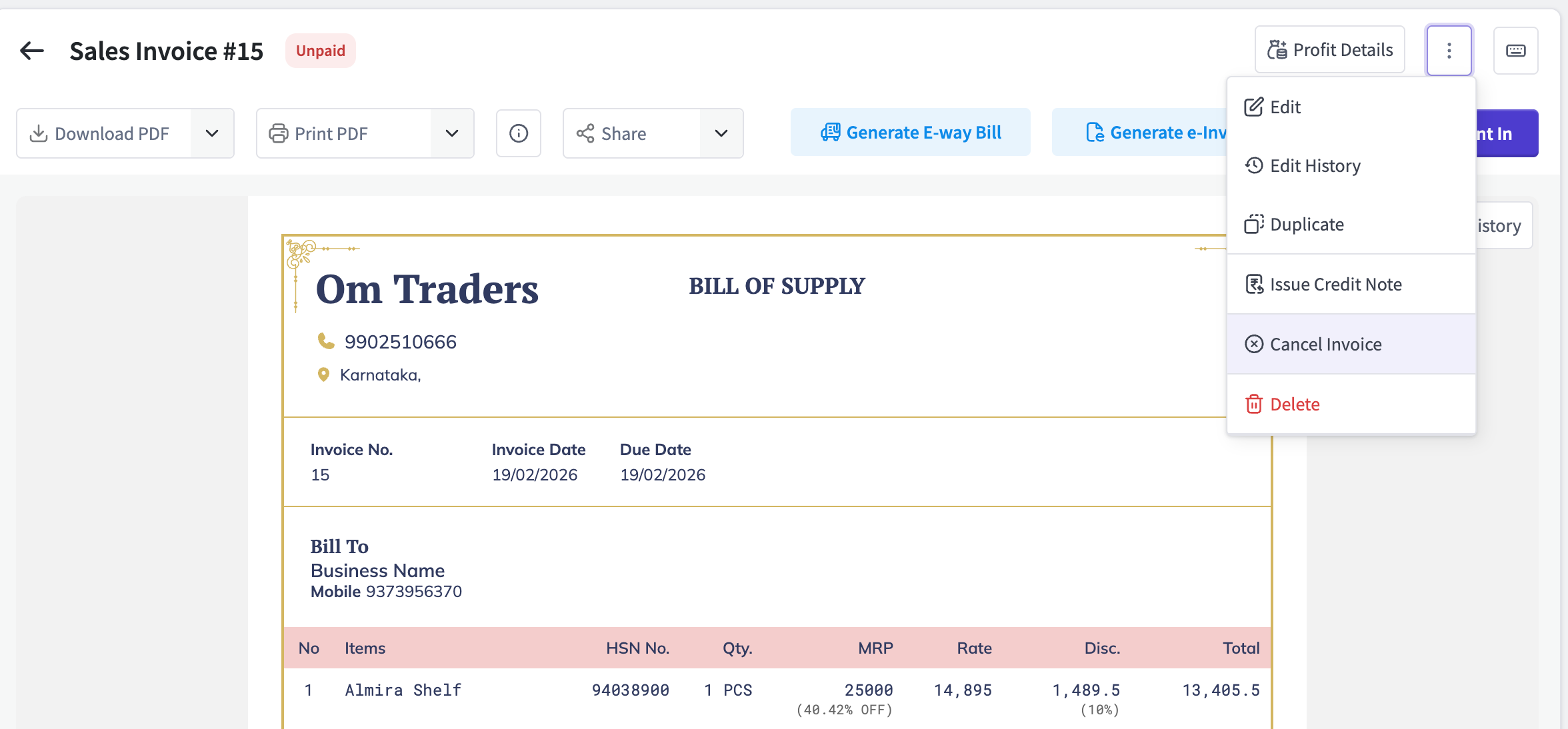
On the invoice details page, look at the right side menu / options
Click Cancel Invoice
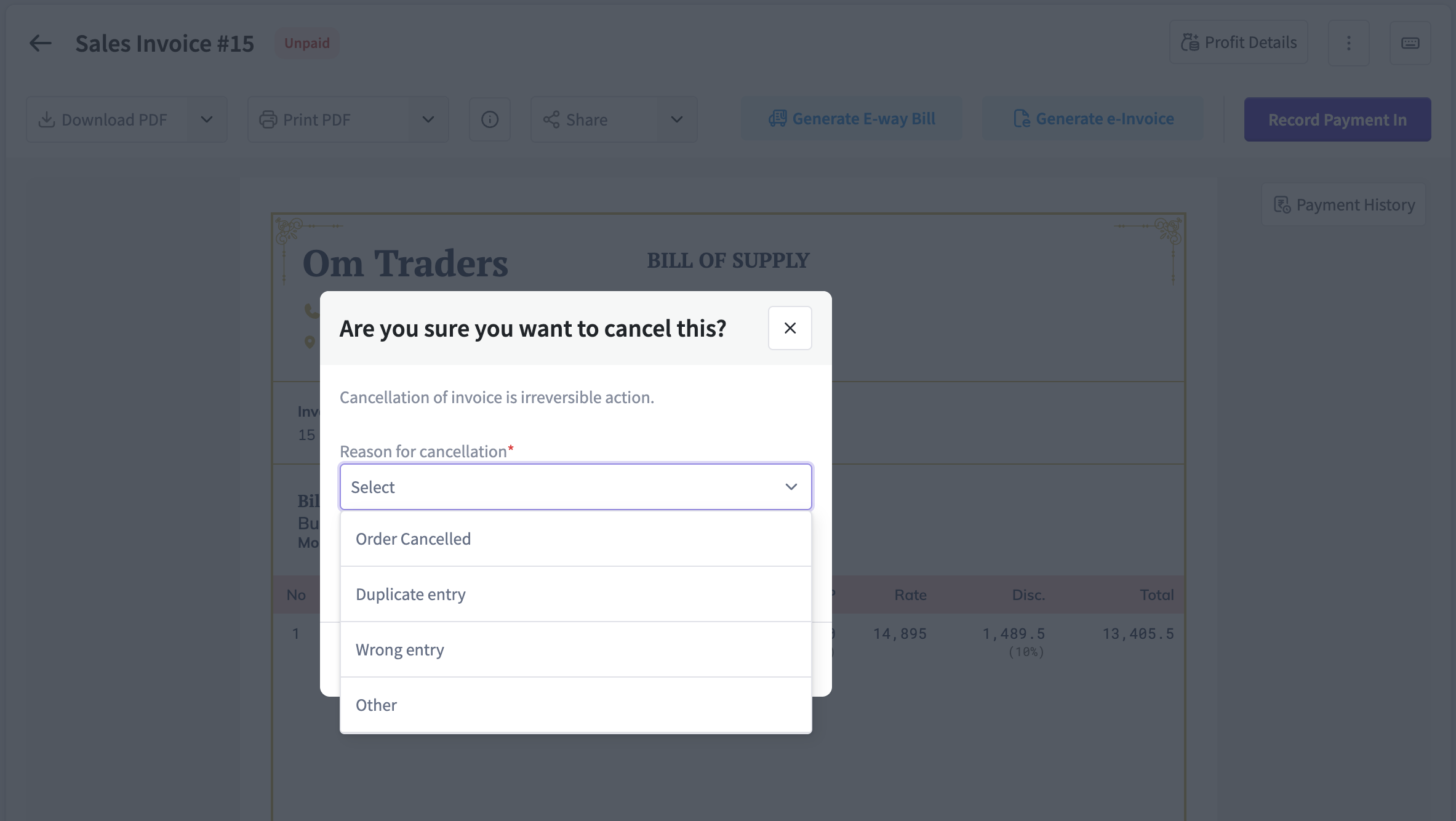
Select the reason for cancellation (mandatory):
Order Cancelled
Duplicate Entry
Wrong Entry
Other (free text)
Step 3: Confirm & Submit
Review the confirmation prompt — cancellation is irreversible
Click Submit to confirm
The invoice status changes to "Cancelled" immediately
⚠️ Important: Cancellation is an irreversible action. Once cancelled, an invoice cannot be un-cancelled. Make sure you're cancelling the correct invoice.
What Happens After Cancellation
For Unpaid Invoices
Invoice status changes to "Cancelled"
All stock quantity changes from the original sale are automatically reversed
No further Payment-In can be recorded against this invoice
For Paid / Partially Paid Invoices
When payment has already been recorded, you get two options:
Option A — Cancel with Credit Note: A Credit Note is auto-generated, preserving all item details, party details, tax details, and e-Way Bill number (if linked). The CN date is set to the cancellation date.
Option B — Cancel without Credit Note: The invoice is cancelled directly. Any payment made at the time of invoice creation is removed. Separately recorded Payment-In entries are delinked and moved to party balance.
💡 Note on Payment-In: If an active Payment-In exists against the invoice, the Cancel Invoice option will be disabled. Delete the Payment-In first, then you can cancel the invoice.
For e-Invoice / e-Way Bill Users
Impact on Reports
Important Things to Know
Cancellation is irreversible. You cannot undo a cancellation.
Cancelled invoices cannot be edited. The edit option is disabled.
You can still delete a cancelled invoice if needed, but that is also irreversible and removes the record entirely.
You can duplicate a cancelled invoice on Web (leads to a new editable invoice).
The cancelled invoice PDF has a visible "Cancelled" watermark for print and download.
Invoice serial numbers are preserved — cancellation does not affect the numbering of subsequent invoices.
Currently available for Sales Invoices only. Credit Notes, Proforma Invoices, Quotations, and Purchase Invoices are not covered yet.
Older app versions will show cancelled invoices without the cancel chip but will block all editing. Users should update the app for the best experience.
Frequently Asked Questions
Q: Can I un-cancel an invoice? No. Cancellation is permanent. If you need a new invoice, create a fresh one or duplicate the cancelled invoice (Web only).
Q: What happens to stock when I cancel? All stock quantity reductions from the original sale are automatically reversed. Your inventory is updated immediately.
Q: Will cancelled invoices show in GSTR-1? Cancelled invoices are excluded from GSTR-1 tax calculations but are counted in the "Documents Issued" section of the GST Portal view. This is the correct behavior for compliance.
Q: Can I cancel an invoice if Payment-In has been recorded? No. You need to delete the Payment-In first. Once the Payment-In is removed, the Cancel Invoice option becomes available.
Q: Is this available on iOS? iOS supports view only. You can see cancelled invoices with the cancelled tag, but you cannot initiate cancellation from iOS. Use Web, or Android to cancel invoices.
Was this helpful?
Still need help? Share an idea