How to Assign Categories to Multiple Items at Once
Written By Team Flobiz
Last updated 4 months ago
Bulk Category Assignment allows you to update categories for multiple items in a single action, saving time and reducing manual work.
Available on:
🌐 Web
How to Assign a Category to Multiple Items
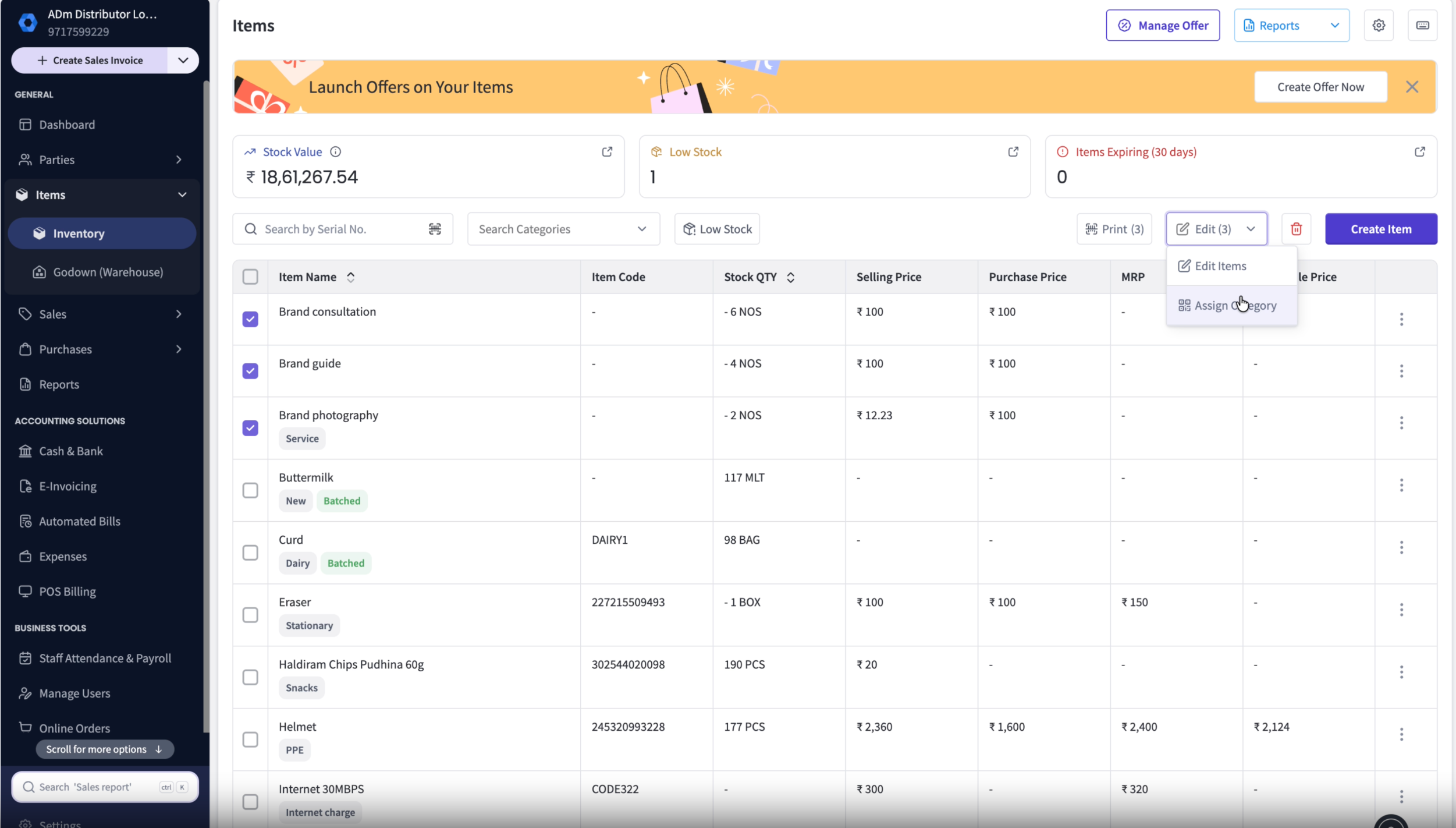
Go to Items List.
Select the items you want to update.
Click Assign Category from the bulk actions menu.
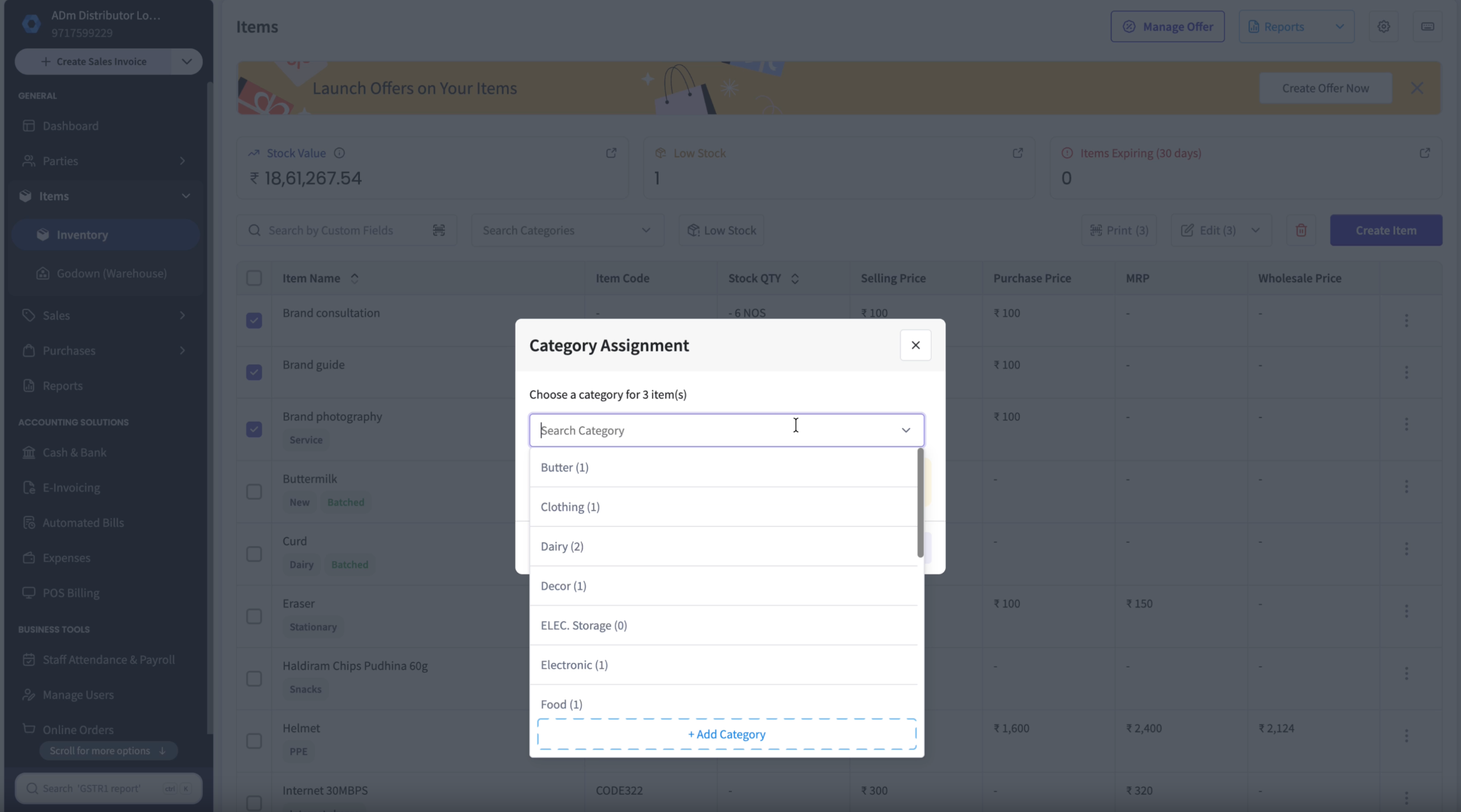
Search for the required category.
Select the category.
Confirm the action.
The category will be assigned to all selected items.
Important Note
Category assignment is processed in the background.
If the updated category is not visible immediately:
Wait for processing to complete.
Refresh the page.
FAQs
Can I assign categories to multiple items at the same time?
Can I assign categories to multiple items at the same time?
Yes. You can select multiple items and assign the same category to all of them in one action.
Will the category update immediately?
Will the category update immediately?
The update is processed in the background and may take a few moments to appear.
What should I do if I don't see the updated category?
What should I do if I don't see the updated category?
Refresh the page after the background process completes.
Can I assign different categories in one bulk action?
Can I assign different categories in one bulk action?
No. Each bulk action applies a single category to all selected items.
Was this helpful?
Still need help? Share an idea